How to Write a Midjourney V7.1 Prompt for Photorealism: The Ultimate Guide to Hyper-Realistic AI Images
The world of AI image generation is moving at a breakneck pace, and with the anticipated arrival of Midjourney V7.1, the pursuit of hyper-realistic AI images is reaching new heights. While the official features list for V7.1 is still emerging, the community excitement is palpable, with many users already sharing their efforts to achieve true photorealism.
Achieving truly photorealistic images in Midjourney is not simply about typing "photorealistic" into the prompt bar. It requires a structured, multi-layered approach that borrows heavily from the technical language and compositional principles of professional photography. By mastering the foundational controls introduced in V6 and V6.1—the models that set the current benchmark for quality and control—users can engineer stunning, life-like visuals that transcend typical AI art.
This ultimate guide will break down the essential components needed to create a hyper-realistic V7.1-ready prompt, utilizing the advanced controls and photographic techniques proven successful in the current cutting-edge versions.
1. Establishing the Foundation: Model and Mode
Before crafting descriptive text, you must instruct Midjourney on how to process your request. This involves selecting the correct model version and disabling the program's default "artistic auto-pilot."
A. Leveraging the Latest Model Iterations (V6.1)
While the focus is V7.1, the principles are built on the massive leaps made in its predecessors, V6 and V6.1.
Midjourney V6 provided the initial breakthrough, introducing advanced rendering capabilities, enhanced customization options, and superior language comprehension. This means V6 and later models can interpret highly detailed instructions regarding elements like lighting, style, and mood.
Midjourney V6.1 further refined the core engine, offering substantial improvements essential for photorealism:
- Coherence and Detail: V6.1 produces more coherent images, particularly concerning complex subjects like arms, legs, hands, bodies, plants, and animals. Crucially for realism, it renders more precise, detailed, and correct small image features, such as eyes, small faces, and hands in the distance.
- Image Quality: The update resulted in much better image quality, with enhanced textures and reduced pixel artifacts, leading to improved skin rendering.
- Aesthetics: Images created with V6.1 are generally intended to look "generally more beautiful" across the board.
B. The Crucial Role of Raw Mode (--raw)
The single most important technical setting for photorealism is Raw Mode.
In Standard Mode, Midjourney automatically injects its own creative flair, often pushing simple prompts toward an artistic style. When you apply the --raw parameter, you are effectively turning off this "auto-pilot."
- For Simple Prompts: Using simple descriptive prompts in Raw Mode often results in more realistic, photo-like images.
- For Detailed Prompts: If you are providing detailed stylistic instructions (like camera or lighting settings), Raw Mode allows you to precisely dial in and control the final look of your images, ensuring the AI adheres to your technical specifications rather than adding its own interpretation.
To use Raw Mode, simply append --raw to the end of your prompt, or activate it globally in your settings.
2. Prompting with Photographic Specificity
To achieve hyper-realism, you must prime the AI by using the language of photography right at the beginning of your prompt.
A. The Opening Hook
Start your prompt by clearly defining the medium. Instead of just describing a subject, use strong terms:
- "A photograph of..."
- "High resolution photograph of..."
- "Photorealistic..."
- "Street photography..."
- "Portrait photograph of..."
- Adding the phrase "social media" can also be key to generating realistic, contemporary images.
B. Technical Parameters for Control
Beyond Raw Mode, several parameters allow you to fine-tune the resulting image quality and structure:
- Quality Adjustment (--q): This parameter controls the output quality. Higher values produce more detailed and refined textures. V6.1 introduced a new
--q 2mode which can optionally add more texture, though this comes at the cost of slightly reduced image coherence. - Resolution and Aspect Ratio (--ar): Specifying the aspect ratio (
--ar) allows for more creativity and ensures the background or scene fits specific platforms (like websites or mobile apps). Resolution control ensures the resulting textures are sharp and suitable for various uses, including large prints. - Stylization (--stylize): Although aiming for realism, the
--stylizecommand, even at lower values, can infuse a specific artistic style into your textures, moving the result slightly away from pure photorealism toward a highly polished aesthetic.
3. The Art of Lighting: Setting Mood and Texture
Lighting is arguably the most crucial element in transforming a good AI image into an extraordinary, lifelike piece. Lighting sets the mood, depth, and texture of an image. Midjourney V6 significantly enhanced its lighting capabilities, allowing for more realistic light rendering and subtle effects.
When writing your prompt, specify the type of lighting and its intended effect.
| Lighting Technique | Description | Example Prompt Element |
|---|---|---|
| Key Lighting | The main light source used to add depth and dimension to the subject. | ...featuring key lighting that adds depth and dimension, highlighting her smile. |
| Rembrandt Lighting | Uses soft side lighting to create a triangular glow on one side of the face, emphasizing regal or intricate details. | ...with Rembrandt lighting illuminating a triangle of light on her right cheek. |
| Low-Key / Dramatic | Focuses on the interplay of light and shadow, conveying deep emotion and intensity. | ...using low-key lighting to create dramatic shadows on their face. |
| Golden Hour | Occurs after sunrise and before sunset, casting a warm, glowing light and creating long shadows. | ...during golden hour, with the setting sun casting a warm, glowing light. |
| Overcast & Diffused | Creates a soft, diffused light that illuminates scenes evenly without harsh shadows. | ...with soft, diffused light evenly illuminating the scene. |
| Backlit Scenes | Illuminates subjects from behind, creating striking silhouettes and a halo effect, separating the subject from the background and adding depth. | ...with backlighting creating a striking halo effect. |
| Bokeh Light Effects | Creates beautiful, blurred light patterns in the background, adding a dreamy or ethereal quality to urban or night scenes. | ...with a shallow depth of field and intense bokeh light effects in the background. |
4. Composition and Camera Control
Photorealism demands more than just texture; it requires a believable composition that mimics how a human photographer frames a shot. The concept of F.O.C.A.L. (Frame, Observation, Composition, Angle, Lens) helps structure the visual narrative.
A. Framing and Balance
Composition techniques are fundamental to guiding the viewer’s attention and enhancing the image’s narrative.
- Rule of Thirds: This technique involves dividing the image into a 3x3 grid and placing the subject along these lines or at their intersections to create a balanced and engaging composition.
- Leading Lines: Using lines within the frame (like a path or railing) to naturally guide the viewer's eye toward the main subject or focal point.
- Framing: Using visual elements within the scene (such as hands or trees) to create a natural or artificial frame around the subject, thereby emphasizing them.
- Negative Space: Utilizing the empty or uncluttered areas around the subject to provide visual contrast, which helps to emphasize the subject and contribute to the overall aesthetic.
B. Camera Angles and Perspective
The angle of the shot significantly influences the perception of the subject, conveying emotions like vulnerability or dominance.
- Eye Level: Creates intimacy and presents the subject as an equal.
- High Angle: Shoots down on the subject, often conveying vulnerability or diminishing the subject.
- Low Angle: Shoots up at the subject, often conveying power or dominance.
C. Lens Focus and Depth of Field
For hyper-realism, especially in portraits or close-ups, mimicking lens effects is essential.
- Depth of Field: Controlling the depth of field allows you to isolate subjects by blurring the background (shallow depth of field) or keep both foreground and background sharp (deep depth of field). This is critical for drawing the viewer’s focus exactly where you want it.
- Specific Camera/Film Stock: By including real-world camera details, you can reinforce the realistic aesthetic. Successful prompts utilize brands and models, such as "Shot with Hasselblad X1D", "Captured with a Canon EOS R5", or specifying a film aesthetic like "Velvia 50 film simulation". Contrasting digital photography (crisp details, vibrant colors) with analog photography (grainy texture, specific film types) allows for precise control over the texture and final look.
5. Conclusion: Engineering the Photorealistic Prompt
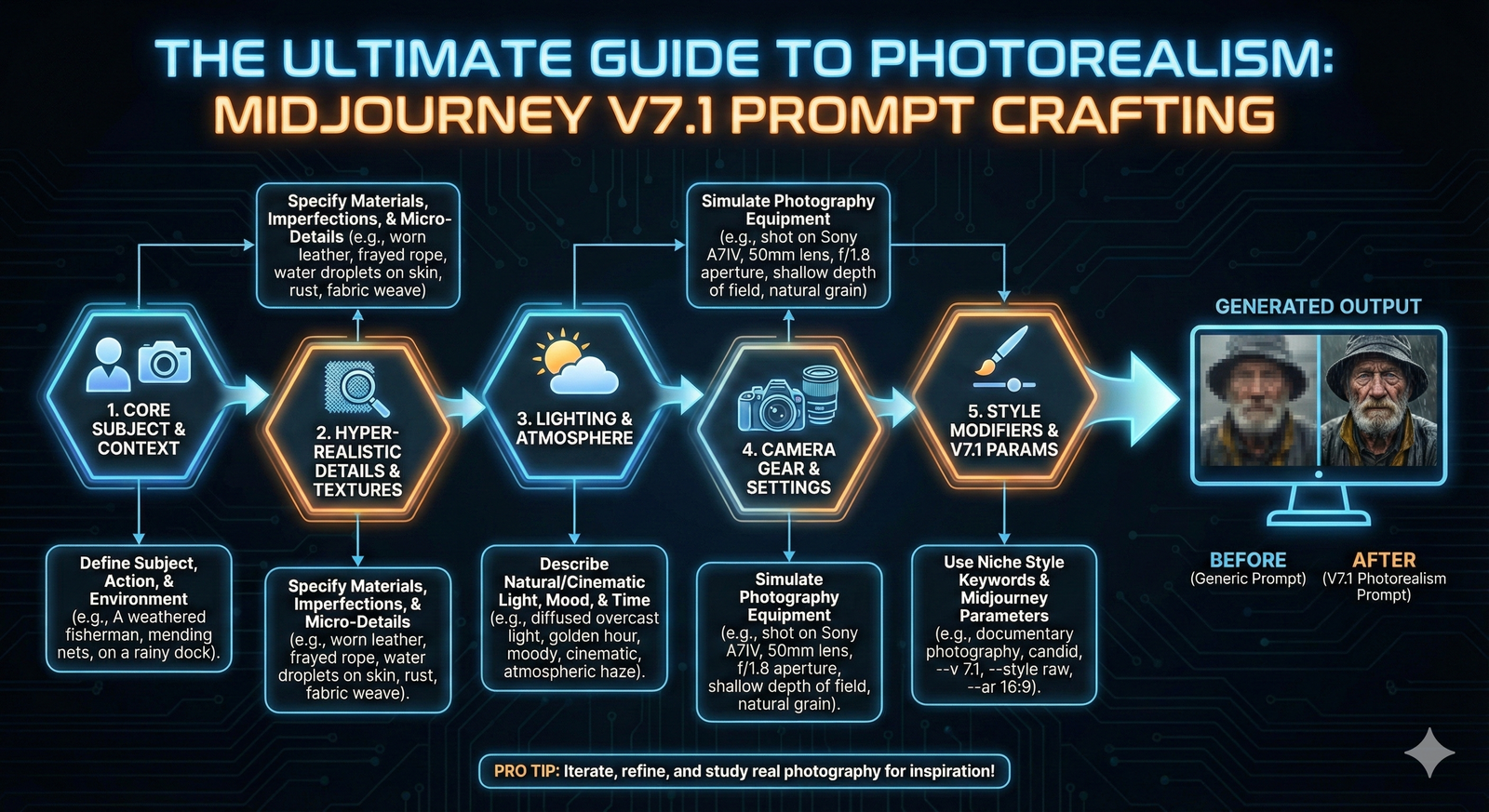
To build an ultimate, hyper-realistic prompt for the forthcoming V7.1, you should synthesize these elements into a complex instruction set. You are not just describing a scene; you are writing a detailed shot list for a professional photographer.
The structured approach is a powerful loop:
- Define the Medium: Start with "A high-resolution photograph of...".
- Define the Subject and Setting: Detail the subject, demeanor, and attire.
- Define Composition: Include framing, perspective, and camera angle (e.g., rule of thirds composition, eye level shot).
- Define Lighting and Mood: Specify the light source and its effect (e.g., Golden hour lighting, soft shadows, heavy backlighting).
- Define Technical Finish: Add camera and lens specifics (e.g., Shot with a Sony A7R IV, shallow depth of field, high detail).
- Apply Version and Mode: End with the essential parameters (
--v 7.1 --style raw --ar 16:9).
Final Example Prompt:
A high-resolution photograph of a young woman with visible freckles and a single tear tracing her cheek, standing under a flickering neon sign in a rainy Tokyo alleyway. Intense split lighting from the right, shallow depth of field at f/1.4, shot on a Leica M6 with Kodak Portra 400 film stock, subtle lens flare, film grain --ar 4:5 --style raw --v 7.1
By moving from simple description to complex technical prompting—a shift perfected in V6 and V6.1—you can prepare to harness the full potential of V7.1 to create truly hyper-realistic AI images. This structured approach ensures that the output is not just beautiful, but believable.
Need help managing this complexity?
Manually crafting these complex, multi-layered prompts is time-consuming and prone to error. The Puretools AI Prompt Generator is designed to translate your simple creative concept into the precise, structured, and technically accurate prompt formula required for Midjourney V7.1 photorealism.
Try Puretools Now